Turn any supplier spreadsheet into a Shopify-ready product CSV
Map any supplier or wholesaler spreadsheet onto the 61 columns Shopify’s product importer expects — variants, image rows, handles, units and enums included. Then download a CSV that imports without the usual round of rejected rows.
Your file never leaves this browser. Parsing, mapping and CSV generation all run locally in your tab — there is no server to upload to.
- Shopify columns
- 61Shopify columns
- Validation rules
- 25Validation rules
- Bytes uploaded
- 0Bytes uploaded
| Row | Type | SKU | Name | Price | Weight | Attribute 1 | Images |
|---|---|---|---|---|---|---|---|
| 1 | variable | ACME-TEE | Acme Heavyweight Tee | — | 0.75 | Small, Medium, … | tee-front.jpg +2 |
| 2 | variation | ACME-TEE-S-BLK | — | 24,99 | 0.72 | Small | — |
| 3 | variation | ACME-TEE-M-BLK | — | 24,99 | 0.78 | Medium | — |
| 4 | variation | ACME-TEE-S-SND | — | 24,99 | 0.72 | Small | — |
| 5 | variation | ACME-TEE-L-SND | — | 26,99 | 0.84 | Large | — |
| 6 | variation | ACME-TEE-M-SND | — | 24,99 | 0.78 | Medium | — |
| 7 | variation | ACME-TEE-L-BLK | — | 26,99 | 0.84 | Large | — |
| Row | URL handle | Title | Option1 | Price | Grams | Pos | Image URL |
|---|---|---|---|---|---|---|---|
| 1 | acme-heavyweight-tee | Acme Heavyweight Tee | Small | 24.99 | 327 | 1 | tee-front.jpg |
| 2 | acme-heavyweight-tee | — | Medium | 24.99 | 354 | — | — |
| 3 | acme-heavyweight-tee | — | Small | 24.99 | 327 | — | — |
| 4 | acme-heavyweight-tee | — | Large | 26.99 | 381 | — | — |
| 5 | acme-heavyweight-tee | — | Medium | 24.99 | 354 | — | — |
| 6 | acme-heavyweight-tee | — | Large | 26.99 | 381 | — | — |
| 7 | acme-heavyweight-tee | — | — | — | — | 2 | tee-back.jpg |
- “24,99” and “€1.234,50” become 24.99 and 1234.50
- 0.72 lb becomes 327 g, as an integer
- “Small, Medium, Large” becomes one row per variant
- one Images cell becomes three image rows, positions 1–3
- the two parent placeholder rows are dropped, not sold as variants
Three steps, and you can see all three
Every image below is a screenshot of this tool running on one of the two sample files you can load from the drop zone above — not a drawing of it.
- 01
Upload
Drop a CSV, TSV or Excel file, or load one of the two bundled samples. Delimiter, encoding and the header row are detected, and every cell is read as text so a leading-zero SKU survives.
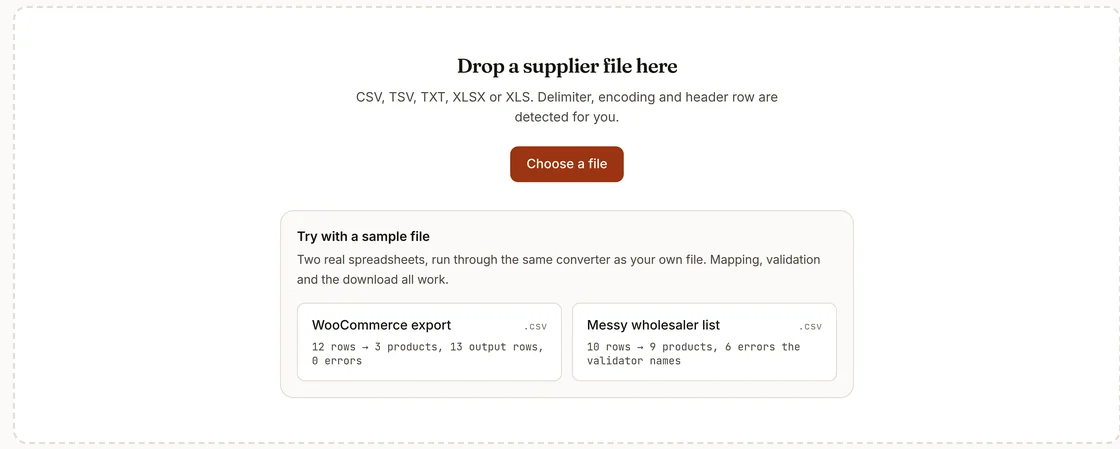
The drop zone, with both sample files offered. - 02
Map
Your headers are matched to Shopify’s 61 columns, each guess carrying a confidence badge. Override any of them, pin a constant, derive retail price from cost, or split one image cell into several rows.
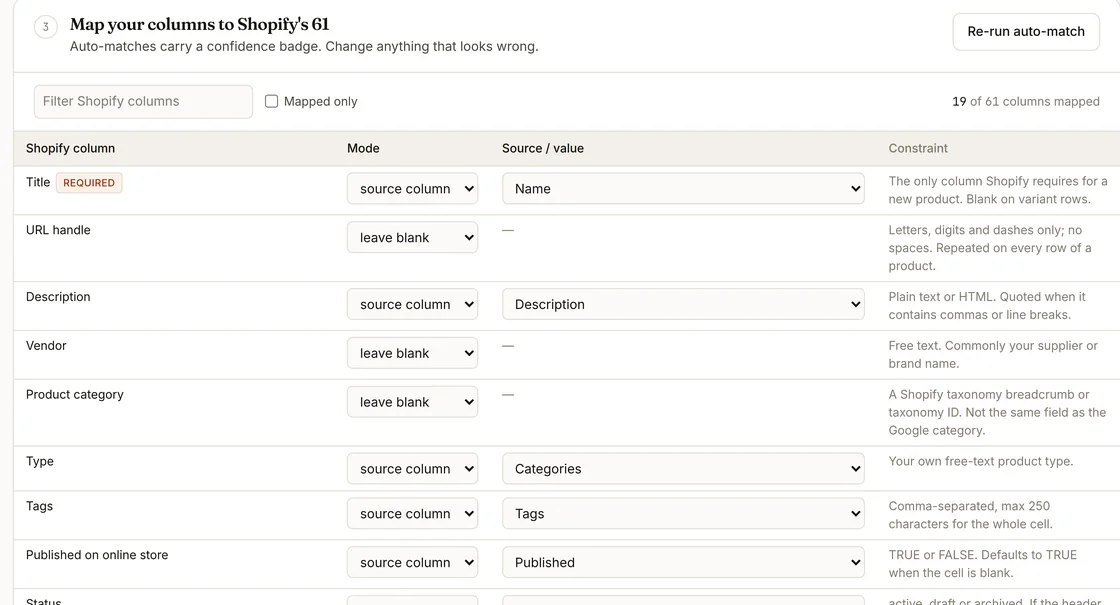
Step 3 of the tool: the mapping table, 19 of 61 columns matched. - 03
Validate & download
Twenty-five rules run over the generated rows before anything is downloaded: money and integer formats, every enum, handle shape, duplicate SKUs, repeated option combinations, partial packed dimensions. Then export.
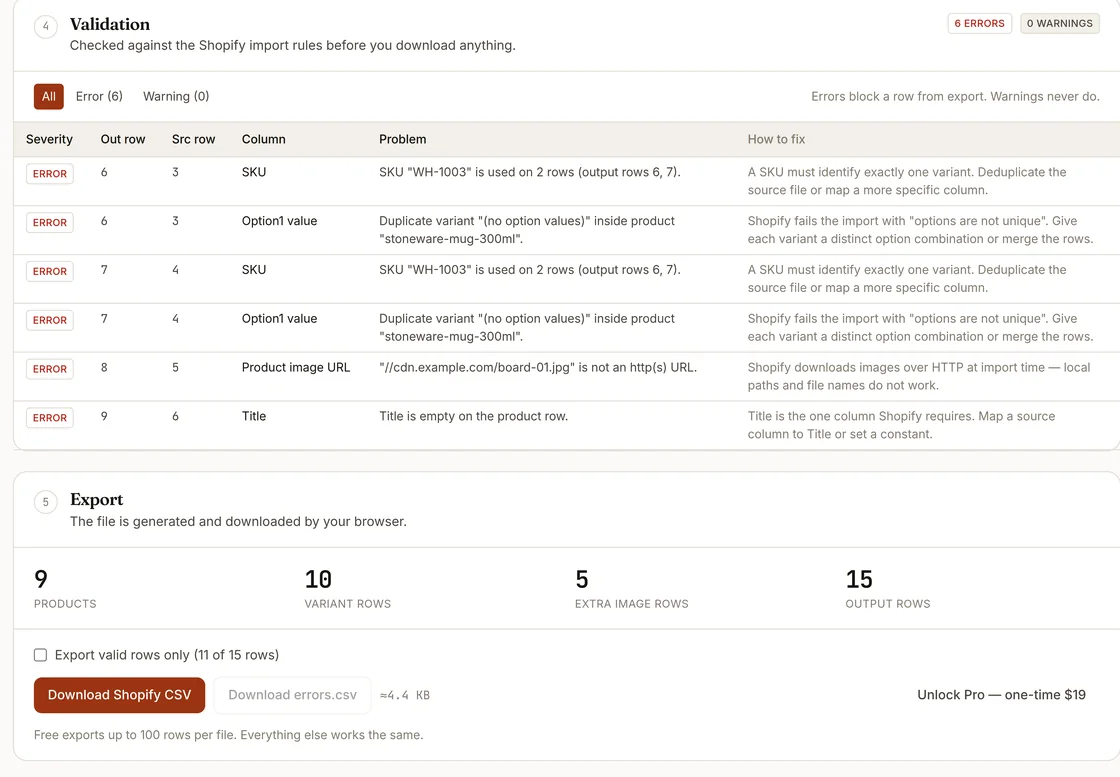
The messy wholesaler sample: six real errors, named with their rows.


Free to start, $19 once if you outgrow it
One payment, no subscription. The free tier is not a trial and does not expire.
Free
$0
The whole tool, capped at 25 products per export — variants and extra image rows are free. Enough for a small catalogue or to check the output before you commit.
- Up to 25 products per export
- All built-in presets
- Full validation, all 25 rules, on screen
- Nothing remembered: each file starts from a fresh auto-match
- Everything runs in your browser
No account, no email, nothing to sign up for — it is the page you are already on.
Pro
one-time$19paid once, not per month
No subscription, no renewal, no seats. One payment unlocks the features below in the browsers where you enter the key.
- Unlimited products per export
- Your mapping is remembered between files
- Handles from a SKU or ID column, stable across re-imports
- Custom presets saved in your browser
- Downloadable errors.csv report
- Automatic 14 MB split for big catalogues
- Future presets included
Start from your platform
Questions merchants actually ask
Why is it so complicated and manual to make the CSV file?
Because Shopify’s product CSV encodes three different things in one flat table: products, their variants, and their images. A product with four variants and three images is eight rows, where most columns must be blank on all but the first. Supplier files almost never arrive in that shape, so the work is reshaping rows, not renaming columns. That reshaping is exactly what this tool does.
How do I include multiple images for one product?
Extra images go on extra rows that carry only the URL handle plus the image columns, with Image position counting up from 1. If your supplier packs all URLs into one cell separated by semicolons, commas or pipes, pick the “split image list” formula on Product image URL and those rows are generated for you.
Why did my import create duplicate products?
Usually because the handle changed between rows that were meant to be the same product. Shopify groups rows by URL handle, so a trailing space, a different capitalisation, or a per-row slugified title produces several products instead of one. This tool slugifies once per product group and repeats that exact handle on every related row.
How do I bulk upload variant options, prices and images together?
One row per variant. Option names (Size, Colour) appear only on the product’s first row; option values appear on every variant row; price, SKU, barcode, weight and inventory are per-variant columns. Variant-specific images go in Variant image URL on the variant’s own row, which is a different column from Product image URL.
What does “Validation failed: options are not unique” mean?
Two variant rows of the same product carry the same option combination — often because a parent row was exported alongside its variations, or because one variant is missing a value for an option the product declares. The validator flags both cases with the row numbers before you upload.
My prices are rejected as not being numbers. Why?
Shopify’s price columns accept digits and a dot only. A euro sign, a thousand separator, or a decimal comma all break them. European sheets are the common case: “€1.234,50” has to become “1234.50”. Price cells are normalised automatically and anything unparseable is reported rather than silently zeroed.
Can I import weights in kilograms or pounds?
Shopify stores one integer value in grams, plus a separate display unit. Tell the tool which unit your source column uses and the conversion to whole grams happens on export. A cell that carries its own unit, like “1.5 kg”, is read correctly regardless of that setting.
What happens if I split my catalogue into smaller files?
Nothing stops you, but handles are generated per file, so two chunks that share a product title produce two different handles and Shopify creates duplicates. Variants of one product split across chunks do not merge either, and the duplicate-SKU and option-uniqueness checks only see the chunk in front of them. The free tier exports 25 products per file; Pro converts the whole catalogue in one pass, which is the only way those cross-file checks can work at all.
How large can the file be, and what happens to a big catalogue?
Shopify rejects a product CSV above 15 MB. Exports are kept under 14 MB and split into numbered parts when needed, and a product is never split across two parts — all of its variant and image rows stay together, because rows are tied to their product only by the handle.
The full column-by-column contract is on the Shopify CSV format reference.